 ProxyZip
ProxyZip / Features / HTTPS debugging
Debug HTTPS traffic without guessing
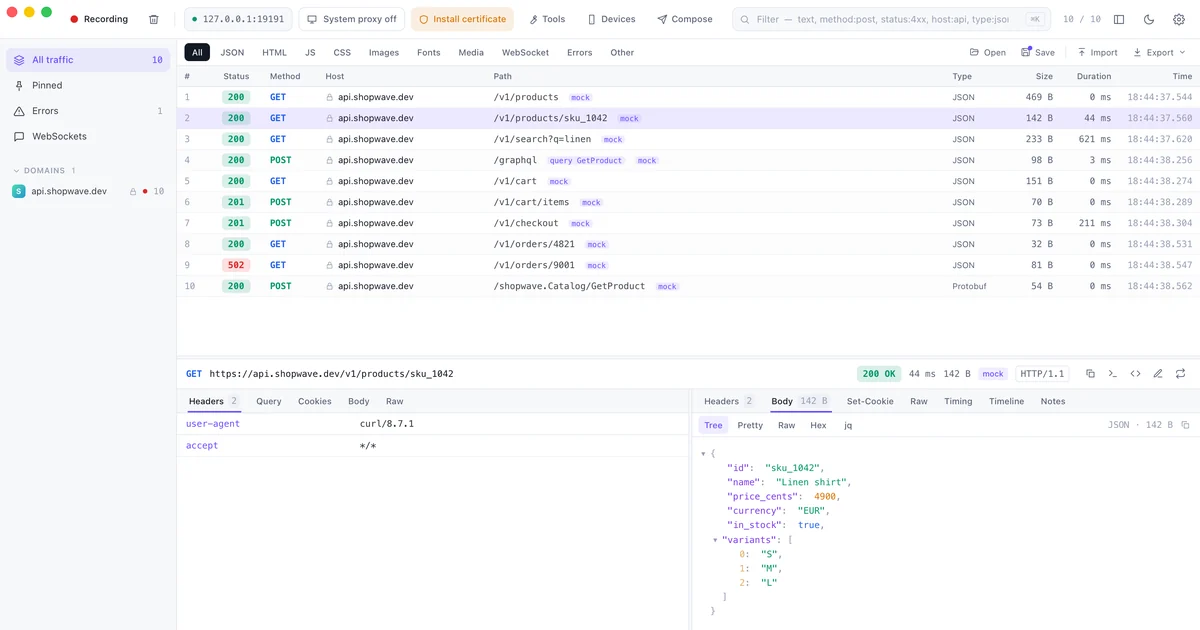
HTTPS hides exactly what you need to see when an app misbehaves: the headers it sent, the body the server returned, how long each step took. ProxyZip is a local proxy that decrypts that traffic on your own machine so you can read it.
How it works
ProxyZip generates a certificate authority (CA) the first time it runs. When you trust that CA, the proxy can present a certificate for each host the app contacts, read the request, forward it to the real server over a normal TLS connection and show you both sides.
- Install the certificate:
proxyzip ca install, or use the This computer tab in the Devices window. - Turn on the system proxy, or run
eval "$(proxyzip env)"to route a single terminal through it. - Use your app. Each request appears as soon as it finishes.
What you can see
- Request and response headers, cookies and query parameters
- Bodies as a JSON tree, pretty-printed text, hex or raw bytes, with
jqfilters - TLS version, cipher, SNI and ALPN, plus a timing breakdown
- HTTP/1.1 and HTTP/2, WebSockets and server-sent events
Keep it private
The CA private key is stored on your disk and is never uploaded. You can exclude hosts you never want decrypted (banking, for example), or decrypt only the hosts you list. Apps that pin their certificates will refuse a proxy by design; the certificates guide explains what to do about that.
Try it from the command line
proxyzip ca install
proxyzip start --port 9393
Each finished request prints with its status, method, URL, size and duration.
Next: pause and edit requests, or debug a phone.